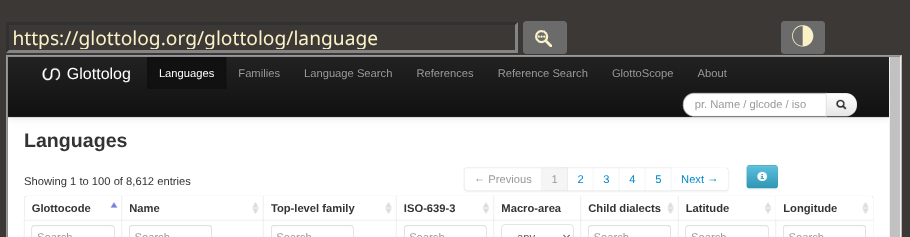
Well. Easy. Good result on that far-right switch …

But is it needed so far right?

On full viewport it can seem lonely out on far-right?
Does it need to be there, so far off?
Just wondering.
TT
The “enable/disable” button is on the right because it was originally designed to also work as part of another TiddlyWiki-based application in combination with a larger “ecosystem” of TiddlyTools/Panels tiddlers, including:
In each of these panels, the left-side of the toolbar is used for “panel specific” controls (e.g., the TiddlyTools Browser’s navigation and bookmark functions, the TiddlyTools Map’s GeoLocation and map view functions, etc.), while the right-side is for common general-purpose buttons such as “enable/disable”, “settings”, and “help” that appear in all of the above panels.
Of course, the reason for this design choice is not readily apparent if you are only using the TiddlyTools Browser panel by itself, but hopefully makes more sense when used together with the other TiddlyTools/Panels.
Nonetheless, your point is well-taken, and I will think about ways to make the design more flexible for stand-alone panel use-cases.
-e
This interests and intrigues me, and I did not know iframes can exist as named “tabs/windows” in the browser. It opens up some of the window handling options I have played with over the years. Hopefully the r-click option to alternatively open in new tab or window is available or can be constructed.
That is interesting, I wonder if the mini-browser bookmarks could then be moved to my firefox so I can maintain them across browsers?
@EricShulman thanks for this work, interestingly on my wide screen monitor, A Tiddlywiki layout that allowed a browser panel to the left or right of the story/side bar would be useful for meta window management. We could avoid the plethora of Browser tabs by bringing it “in house” to tiddlywiki. Ideally using the resizer widget recently developed to allow a draggable resize.
Also with my dual monitor setup, using open the in-wiki Browser tiddler in a new window, would give me a separate browser window remotely controlled by my wiki.

Love your work @EricShulman and @TiddlyTitch - Tones
This is just a comment on the implications of the new Bookmarks Search function.
It is EXTREMELY useful.
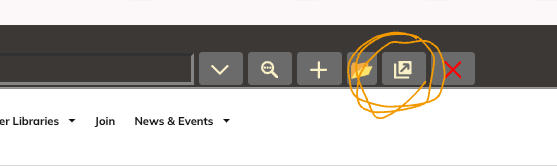
In tests I discovered that for some mini-browsers all I need of their toolbar is this minimalism …
In the final ways I’ll use the mini-browser some browsers will have all toolbar buttons; others just 2.
TT
This is just info on CSS use in the mini-browser …
For anyone wanting to hide some of the mini-browser toolbar buttons this CSS works for any button containing an SVG image with a class …
/* MINI-BROWSER BUTTON HIDING */
.tt-browser-toolbar button:has(svg.tc-image-left-arrow) {display:none;}
.tt-browser-toolbar button:has(svg.tc-image-right-arrow) {display:none;}
.tt-browser-toolbar button:has(svg.tc-image-down-arrow) {display:none;}
… etc
UPDATE of 27-12-2025: This method should no longer be used!
An alternative is available.
TT
@EricShulman, a small cosmetic question on an “image” in the toolbar (FWIW, the question has relation to my previous 2 posts) …
Q7: Am I right in thinking that the Folder in the toolbar is not the $:/core/images/folder … but a font glyph?
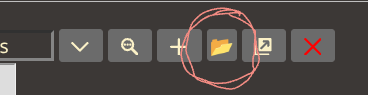
Just wondering because I couldn’t find a way to hide it (using the CSS of my prior post).
TT
p.s. I’m not expecting you to change anything!
I didn’t like the look of $:/core/images/folder, so I used a font glyph  (
(📂)
To hide it, you can use this CSS:
.tt-browser-toolbar button[title="add a folder"] {display:none;}
-e
Here’s another little bit of CSS you might like…
To have the “enable/disable” button next to the other button instead of on the right side:
.tt-browser-toolbar { display:inline-block; }
-e
Couple of points …
I haven’t tried it but you’d probably need a macro to do the needed conversion into a consolidated export output.
Also note that the TiddlyTools Minibrowser bookmarks don’t save Site Icons that browsers do. So, on an export of them, you’d have no bookmark icons.
FWIW, my approach, now, is to simply use one TW instead of browser bookmarks for most everything linkage.
That is ultra-portability!
TT
Right.
Practically when you click a link targeting the attribute name="somename" …
In other words, within TW: it is an elegant, efficient modus operandi.
TT
UPDATE: In a previous post I tried to document how easy it is to change the default target of TW external links from _blank. See this.
WHY be obsessed with browser windows/tabs?
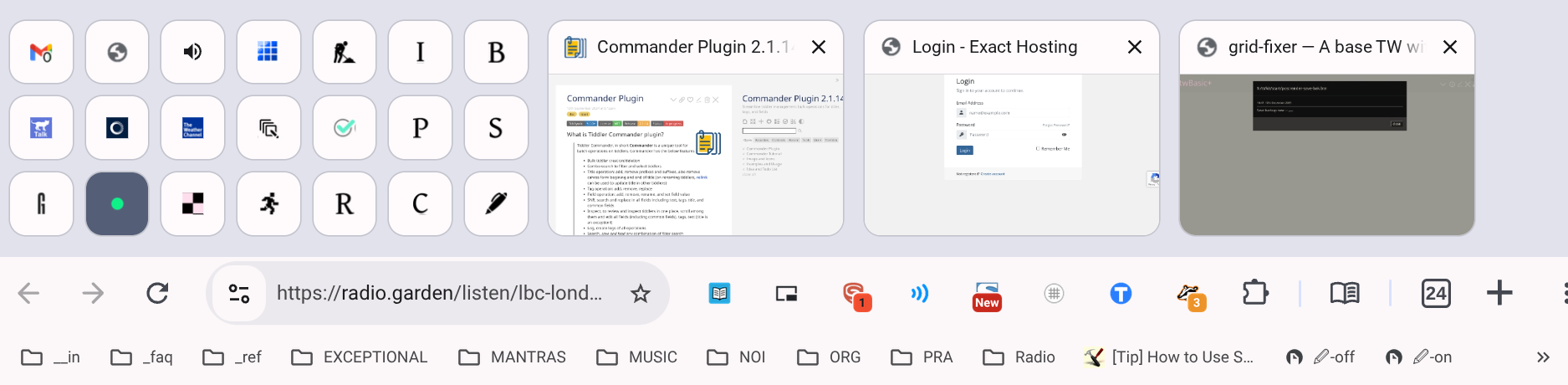
Like most everyone here, every morning I get up to this browser mess…
I’m hoping to now be able to simplify it by accessing at least half of those tabs in one TiddlyWiki thanks to TiddlyTools Minibrowser.
TT
meanwhile: Radio Robin, Nova Gorica, Slovenia.
@EricShulman, I have a few more questions.
Q8: Under the new Search function can we exclude all link titles that include a special character (e.g. ⇗)?
Background: After importing some bookmarks I found I now have a Houston Problem. Vast numbers of links I want to maintain in your tool refuse to iframe.
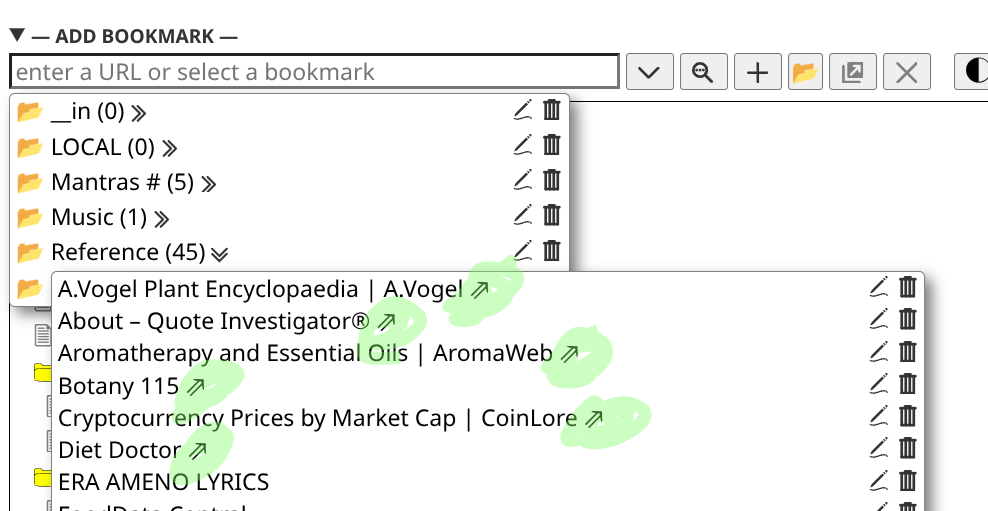
I have started changing their titles by adding the font character “⇗” at their end so I can see they won’t work in an iframe. Like this …
Could the Search function (only) include a Filter so it ignores ALL link Titles that include a specific character (like ⇗)?
I hope this is clear!
TT
This is just a comment …
I’m a fan of #hashtaggery.
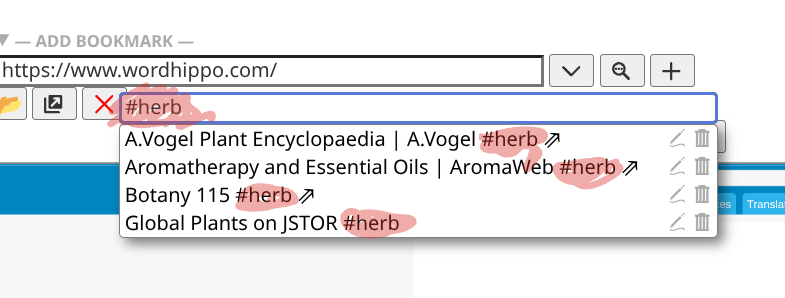
To give a cross-cutting of folder hierarchy I sometimes add hashtags to link titles.
Here is an example that works brilliantly using the Search function of the miniBrowser …
Superbly good.
TT
I’ve added two new params to TiddlyTools/Panels/Browser’s <<showPanel>> macro: extlink and find
The default values for the <<showPanel>> macro are now:
<<showPanel width:"100%" height:"50vh" name:"minibrowser" extlink:"+" find:"">>
If a bookmark’s “name” has a suffix that matches the specified extlink param value, then it will be automatically opened in a separate window instead of using the embedded iframe. Note that I chose to use “+” as the default suffix, rather than your suggested “⇗” unicode character. This is because the unicode character can be difficult to enter on some platforms (i.e., mobile). Also note that the extlink param value does not handle HTML entity notation (i.e., ⇗ or ⇗) so to use your preferred suffix you will have to copy/paste the literal ⇗ symbol, like this:
\import TiddlyTools/Panels/Browser
<<showPanel ... extlink:"⇗">>
To apply a filter to the search list, use the find param value to specify the desired filter. To exclude external links, you can write something like this:
\import TiddlyTools/Panels/Browser
<<showPanel ... find:"[!suffix<extlink>]">>
enjoy,
-e
Whoa! This lifts this tool from great to genius.
I just tried it. It is brilliant.
NOW I can internal iframe AND auto-go external when needed.
TT
“+” works fine as a final character.
My shock is in how accepting external invocation transforms this into an “every link” tool.
Now it definitely replaces browser bookmarks.
TT
@EricShulman, this is just a question to check I understand …
Q9: Am I right in thinking that bookmark “folders” are dynamically read by MiniBrowsers and you can safely move folders in and out?
I ask because I will likely need to swap in and out some “folders”. This illustrates my issue …
The huge numbers slow the Search a bit. But that isn’t the issue. Those red circled folders I need for research—but NOT for daily use.
So is it safe / workable to copy in / move out those folders from the Bookmarks?
I hope this is clear!
TT