TiddlyTools in-wiki Browser is super-useful

Q5: does/can the iframe of the miniBrowser have a “name=”?
e.g. …

name="tt-browse"

That would allow?? The miniBrowser (when open) to accept any “<a>” link that has the name value as it’s target.
If miniBrowser wasn’t open the link would then, I think, open, as normal, in a new window.

TT

The “<” and “>” buttons simply invoke javascript window.frames.history.go(-1); and window.frames.history.go(1); respectively. The iframe history object itself (window.frames.history) is maintained and managed by the browser, so the behavior is outside my direct control.

What I’ve found is that, in Chrome, if you use TiddlyTools/Panels/Browser to visit “SiteA” and then navigate to pages within SiteA, then “<” and “>” work as expected (i.e., moving back/forward in the iframe’s page history). If you then use the TiddlyTools/Panels/Browser’s URL input to go to “SiteB” and navigate within SiteB, the same intra-site back/forward applies to SiteB, but does not permit you to use “<” to go back to SiteA. So, in that regard, it does behave as if you’d opened a fresh window.

One important note:

if you use the “<” button from the first page of an iframe’d site, instead of doing nothing, it applies the button press to the parent window (i.e., your open TiddlyWiki), resulting in an unwanted EXIT from your TiddlyWiki :frowning:

To address this, I’ve provided another bit of javascript, TiddlyTools/Panels/Browser/NoExit.js that hacks the parent window’s “history stack” to prevent the iframe’s “<” back button from leaving that parent window.

It is a “startup” module that is invoked once (when the parent window is first loaded) and defines exports.name = "spineless"; (i.e., “no back”). This module adds the current location.href to the history stack and sets window.onpopstate=function(){ history.forward(); }; so that attempts to move back past that location.href stack entry automatically moves forward again, effectively preventing you from unintentionally leaving the parent window.

Because TiddlyTools/Panels/Browser/NoExit.js is invoked as a startup module, it is always in effect even if you don’t actually use the TiddlyTools/Panels/Browser in the current session. However, this behavior might be unwanted. To address this, the NoExit.js tiddler has been published without the module-type=startup field, so it is NOT automatically invoked at startup. To enable the “no back” handling, you need to add the module-type field with a value of “startup” and then save-and-reload for it to be applied.

-e

2 Likes

Each instance of the miniBrowser uses <<qualify>> to create and track unique state values (url, name, and enabled) in $:/config/TiddlyTools/Browser. This effectively allows multiple instances of the miniBrowser to be used in the same document, as long as only one miniBrowser is rendered in each tiddler.

-e

3 Likes

re: custom aspect ratios (Q3) and zoom/scale values (Q4)…

Currently, these are hard-coded to “16/9” and “0.5”, respectively. In the past, I experimented with using different values but it turns out that controlling the rendering of iframe contents is very tricky and I was unable to produce the results I had expected. Nonetheless, the ability to apply custom aspect ratios and zoom/scale values are reasonable requests, so I will make another attempt to parameterize these values, but I’m not sure it will enable the kind of control you want.

-e

It does NOW :slight_smile:

The default is name="minibrowser", so you can write:

<a href="http://example.com" target="minibrowser">click me</a>

To assign a different name:

\import TiddlyTools/Panels/Browser
<<showPanel name:"somename">>

and then use

<a href="http://example.com" target="somename">click me</a>

enjoy,
-e

2 Likes

This is just a comment.

But to folk interested in the miniBrowser (and iframes for embedding external pages in general) it may be of help.

TW has simple, explicit, very economical, WikiText for external links in the full form of …

[ext[site name|https://www.site-url]]

A TW parser will silently, & cleverly, add things to protect you and direct the link to a new tab/window via target="_blank" … and the generated HTML code (modified for readability) is …

<a class="tc-tiddlylink-external" 
 href="https://www.site-url" 
 rel="noopener noreferrer" 
 target="_blank">site name
</a>

What you see is …

Okay so far.

But I want to have those links open in the TiddlyTools miniBrowser (or any iframe with a name=“value”).

How can I change the parser at $:/core/modules/parsers/wikiparser/rules/extlink.js to direct links to an iframe with a name that is not “_blank”?

(Relax: This is not “University Challenge”)

I surprised myself by changing one line in the parser from …

target: {type: "string", value: "_blank"},

… to …

target: {type: "string", value: "minibrowser"},

… and it worked (the miniBrowser has to be open. If it isn’t the link, usefully, goes too a new window/tab).

TT

That is really useful if one does a lot of embedding of external sites!!

Tx, TT

It turns out that I had ALMOST all the needed handling already, except for two things:

  • The width of the wrapper around the iframe was hard-coded to “100%”. I’ve changed this so that it can apply a custom width value (e.g., “30vw”), with a default to “100%” if not otherwise specified.
  • The showPanel macro now accepts optional width and height parameters. You can use any CSS measurement values for width (default=100%) and height (default=50vh).

enjoy,
-e

3 Likes

Another minor question …

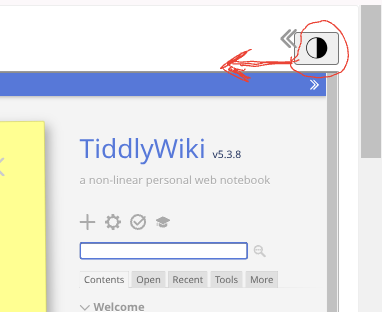
Q6: Small CSS issue on the mini-browser control bar.
I sometimes use the mini-browser nearly full screen and get this small problem …

Screenshot 2025-12-15 14.28.40

I couldn’t find a class that would let me move the button away from the sidebar left pointing chevron.

TT

Just comments …

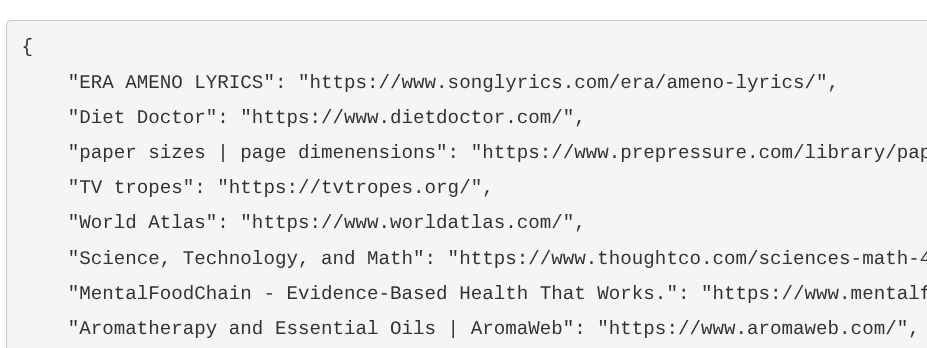
The Bookmarking is fantastically flexible!

  • I found it easy to convert Chrome browser bookmarks to the format used by the mini-browser

TT

I’ve just added a new “tt-browser-toolbar” class to the DIV that contains the toolbar. To shift the “enable/disable” button, You should be able to use something like this:

.tt-browser-toolbar { margin-right:2em; }

Let me know how it goes…

-e

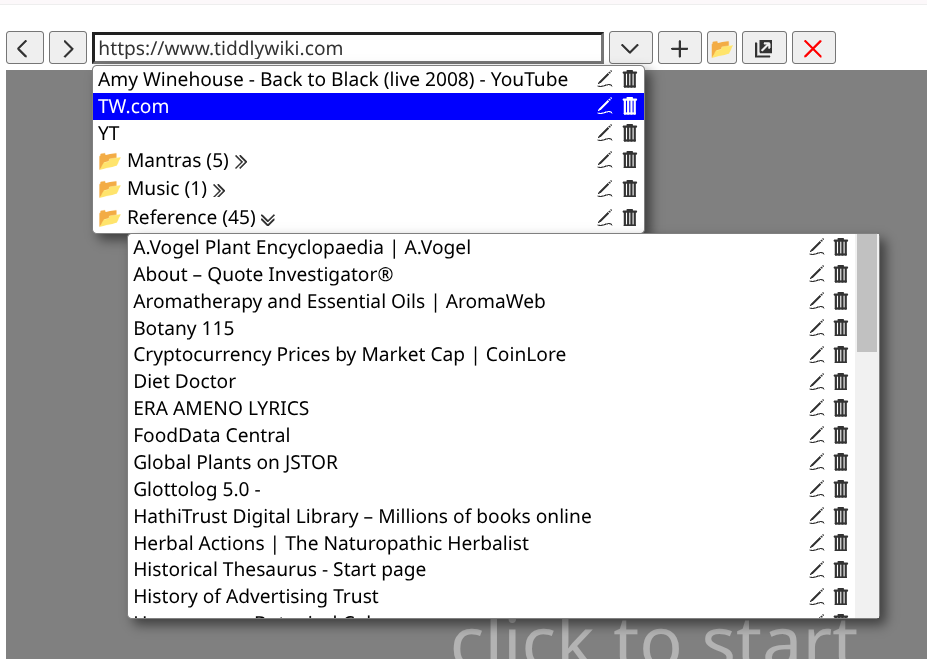
I noticed that in your posted bookmarks snapshot you have a “Reference” folder with 45 items, which results in a scrollable bookmark list. While this allows you to scroll to your desired bookmark, it could get somewhat tedious if you always need to scroll the list just to open a bookmark that is further down.

To make bookmark access easier/faster, I’ve added a new TiddlyTools Browser “search bookmarks” toolbar button (using the TWCore’s “advanced search” button image) that lets you enter text to find matching bookmarks. The search input is case-insensitive and finds any matching text in bookmark names and bookmark URLs. The results are displayed as a “flat list” of bookmark items.

enjoy,
-e

3 Likes

Whoa! Seriously good!

Not having to navigate a complex hierarchy of folders is ace …

TT

2 Likes

Well. Easy. Good result on that far-right switch …

Screenshot 2025-12-16 18.36.50

But is it needed so far right?

On full viewport it can seem lonely out on far-right?
Does it need to be there, so far off?

Just wondering.
TT

1 Like

The “enable/disable” button is on the right because it was originally designed to also work as part of another TiddlyWiki-based application in combination with a larger “ecosystem” of TiddlyTools/Panels tiddlers, including:

  • TiddlyTools/Panels/Location
  • TiddlyTools/Panels/Maps
  • TiddlyTools/Panels/StreetView
  • TiddlyTools/Panels/Database
  • TiddlyTools/Panels/Browser

In each of these panels, the left-side of the toolbar is used for “panel specific” controls (e.g., the TiddlyTools Browser’s navigation and bookmark functions, the TiddlyTools Map’s GeoLocation and map view functions, etc.), while the right-side is for common general-purpose buttons such as “enable/disable”, “settings”, and “help” that appear in all of the above panels.

Of course, the reason for this design choice is not readily apparent if you are only using the TiddlyTools Browser panel by itself, but hopefully makes more sense when used together with the other TiddlyTools/Panels.

Nonetheless, your point is well-taken, and I will think about ways to make the design more flexible for stand-alone panel use-cases.

-e

This interests and intrigues me, and I did not know iframes can exist as named “tabs/windows” in the browser. It opens up some of the window handling options I have played with over the years. Hopefully the r-click option to alternatively open in new tab or window is available or can be constructed.

That is interesting, I wonder if the mini-browser bookmarks could then be moved to my firefox so I can maintain them across browsers?

  • However I am keen to do this in bulk across multiple folders and containing bookmarklets containing javascript.

@EricShulman thanks for this work, interestingly on my wide screen monitor, A Tiddlywiki layout that allowed a browser panel to the left or right of the story/side bar would be useful for meta window management. We could avoid the plethora of Browser tabs by bringing it “in house” to tiddlywiki. Ideally using the resizer widget recently developed to allow a draggable resize.

  • I wonder if I could make it happen?

Also with my dual monitor setup, using open the in-wiki Browser tiddler in a new window, would give me a separate browser window remotely controlled by my wiki.

:thinking:

Love your work @EricShulman and @TiddlyTitch - Tones

This is just a comment on the implications of the new Bookmarks Search function.

It is EXTREMELY useful.

In tests I discovered that for some mini-browsers all I need of their toolbar is this minimalism …

In the final ways I’ll use the mini-browser some browsers will have all toolbar buttons; others just 2.

TT

This is just info on CSS use in the mini-browser …

For anyone wanting to hide some of the mini-browser toolbar buttons this CSS works for any button containing an SVG image with a class …

/* MINI-BROWSER BUTTON HIDING */
.tt-browser-toolbar button:has(svg.tc-image-left-arrow) {display:none;}
.tt-browser-toolbar button:has(svg.tc-image-right-arrow) {display:none;}
.tt-browser-toolbar button:has(svg.tc-image-down-arrow) {display:none;}
… etc

UPDATE of 27-12-2025: This method should no longer be used!
An alternative is available.
TT

@EricShulman, a small cosmetic question on an “image” in the toolbar (FWIW, the question has relation to my previous 2 posts) …

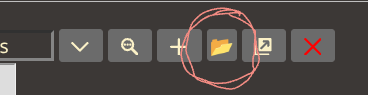
Q7: Am I right in thinking that the Folder in the toolbar is not the $:/core/images/folder … but a font glyph?

Screenshot 2025-12-17 11.34.04

Just wondering because I couldn’t find a way to hide it (using the CSS of my prior post).

TT

p.s. I’m not expecting you to change anything!

I didn’t like the look of $:/core/images/folder, so I used a font glyph :open_file_folder: (&#x1F4C2;)

To hide it, you can use this CSS:

.tt-browser-toolbar button[title="add a folder"] {display:none;}

-e