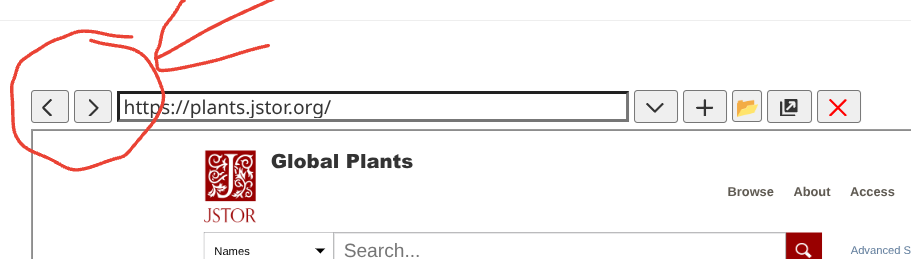
The “<” and “>” buttons simply invoke javascript window.frames.history.go(-1); and window.frames.history.go(1); respectively. The iframe history object itself (window.frames.history) is maintained and managed by the browser, so the behavior is outside my direct control.
What I’ve found is that, in Chrome, if you use TiddlyTools/Panels/Browser to visit “SiteA” and then navigate to pages within SiteA, then “<” and “>” work as expected (i.e., moving back/forward in the iframe’s page history). If you then use the TiddlyTools/Panels/Browser’s URL input to go to “SiteB” and navigate within SiteB, the same intra-site back/forward applies to SiteB, but does not permit you to use “<” to go back to SiteA. So, in that regard, it does behave as if you’d opened a fresh window.
One important note:
if you use the “<” button from the first page of an iframe’d site, instead of doing nothing, it applies the button press to the parent window (i.e., your open TiddlyWiki), resulting in an unwanted EXIT from your TiddlyWiki 
To address this, I’ve provided another bit of javascript, TiddlyTools/Panels/Browser/NoExit.js that hacks the parent window’s “history stack” to prevent the iframe’s “<” back button from leaving that parent window.
It is a “startup” module that is invoked once (when the parent window is first loaded) and defines exports.name = "spineless"; (i.e., “no back”). This module adds the current location.href to the history stack and sets window.onpopstate=function(){ history.forward(); }; so that attempts to move back past that location.href stack entry automatically moves forward again, effectively preventing you from unintentionally leaving the parent window.
Because TiddlyTools/Panels/Browser/NoExit.js is invoked as a startup module, it is always in effect even if you don’t actually use the TiddlyTools/Panels/Browser in the current session. However, this behavior might be unwanted. To address this, the NoExit.js tiddler has been published without the module-type=startup field, so it is NOT automatically invoked at startup. To enable the “no back” handling, you need to add the module-type field with a value of “startup” and then save-and-reload for it to be applied.
-e