The codemirror-6 plugin that is installed from the Desktop is not the same as the one you get from xyvir’s site. In particular, the built-in codemirror-6 it doesn’t provide the settings you need to access keymaps, palettes. Also features like alt-up didn’t seem to work.
The built-in version is 5.3.8. The one that seems to work correctly is 0.0.36
That makes sense. I guess I thought that the minimal CM6 plugins were available. But I guess it’s only the collaboration CM6 plugin, and everything else you have to load from xyvir’s site.
Get the Codemirror 6 Collaborative Editing from within the app
You can however put the plugins into the “plugins” sub-directory in your app’s appdata directory on Desktop. That directory is treated like an extension to your $TIDDLYWIKI_PLUGIN_PATH … you can also put them simply to your $TIDDLYWIKI_PLUGIN_PATH if you have set it up. Those plugins should then show up in the plugin-chooser within the App.
On Android it’s similar: There you can define your custom $TIDDLYWIKI_PLUGIN_PATH and $TIDDLYWIKI_EDITION_PATH from within the app. Plugins and Editions in those folders will get picked up by the edition chooser and plugin chooser.
The installer had issues with installs over already installed App versions.
It caused the landing page to stay in an old state and not updating to the new compatible state.
There will be a new version within 30 minutes with an installer that fixes that.
For those who cannot wait, uninstall the App through the control panel and install it again, latest version.
Because you might have been working with an outdated landing page without the new and fixed functionalities, also your configs might be outdated.
So when you reinstall the App, delete your %appdata%\com.burningtreec.tiddlydesktop-rs folder beforehand.
This is known already and will be fixed with this build which is currently running:
It’s a Windows specific issue, and related to the fact that I once again changed a subtle thing and I want to apologize for the trouble caused. Within 15 minutes the new build should be ready.
both must be in the same LAN in your case because you don’t have relay-sync enabled, you’re not authenticated and therefore the room cannot be registered on the relay-server
I don’t know why you hide the server url
the wiki you want to sync must be assigned to a room
If all these cases are given and it still doesn’t work, close both apps, delete the appdata folder on your Desktop, uninstall the app on your smartphone, reinstall the app on your smartphone, open the App on your Desktop again and check again.
I have tested these two App versions against each other.
Might be that your network (LAN) doesn’t permit communication over the needed ports.
In that case you can still use relay-sync.
This is what I did. I uninstalled both the desktop and android apps . Deleted the appdata folders in windows . Then did a fresh install on both windows and android.
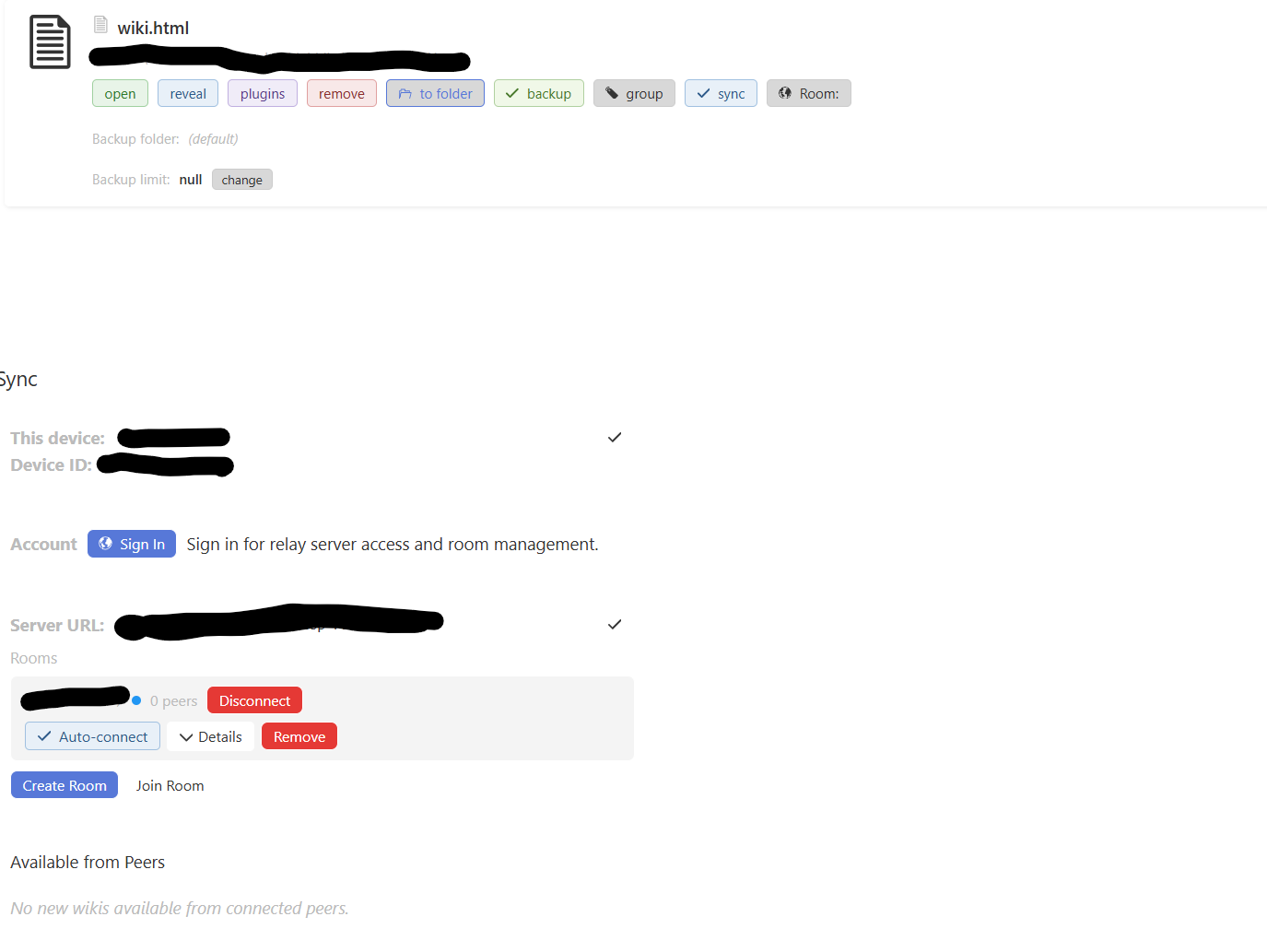
Next I created a wiki in desktop app and created a new room . Then I added this wiki to the room i created. Now I opened the android app and joined the same room by entering the same credentials.
What I now expect was to see the wiki from the desktop app to appear in the available from peers section of the android app. This was not happening and peers was shown as zero.
Can you tell what to do next? Wait for the android .0.0.77 version?
Edit: I was indeed connected to the same wifi network in desktop and phone
Yes it’s windows… No such prompt happened during the recent installation
I don’t have much knowledge about the LAN setup . It’s at my home and we use a common wifi using wifi router.
When you started the LAN sync (before the introduction of rooms) , I was able to connect the desktop and android apps in the same wifi network. So that must not be the cause of this issue.
May be I will test the relay-sync option if nothing works
Yes, i did the uninstall from the windows settings and deleted the appdata folders as you mentioned previously. Then only i did the fresh reinstallation of the latest version
I have tried both default and portable installation… but the current installation is not a portable one…also i deleted the folder i previously used for portable version… I used the .exe file for installation usually.
@BurningTreeC That did the trick. Had to change the settings in windows firewall. Finally I got my wikis real time synced in both desktop and android. Great work