This script defines two hotkeys for interacting with TiddlyWiki (node.js version):
Win+F: Takes a screenshot of the active window, saves it to specified folder
Win+X: Save image into specified folder from Save As dialog
The specified folder is under the tiddlywiki root folder and defined as tiddlywikiPath. The files are stored under files/images/YYYY/ subfolder with filename as timestamp.
The image macro is automatically generated and copied to clipboard, which can be pasted into TiddlyWiki. The macro text can be modified in the InsertImageToTiddlyWiki function.
If Tiddlywiki tw-livebridge (>=0.0.12) is installed and running, the macro text is also sent to TiddlyWiki via WebSocket with message type modify-tiddler.
If VS Code exenstion TiddlyEdit (>=0.2.5) is installed and running, the image macro is also inserted into the current tiddler being edited.
Usage:
Modify the tiddlywikiPath variable to point to your TiddlyWiki folder.
Modify the tiddlywikiWsUrl variable if your WebSocket URL is different.
Modify the InsertImageToTiddlyWiki function to change the image macro format if needed.
Ensure you have AutoHotkey v2.0 or above installed.
Use #Include tiddlywiki.ahk to include this script in your main AHK script.
I wonder if a very similar workflow could be achieved without using external tools and OS-independent.
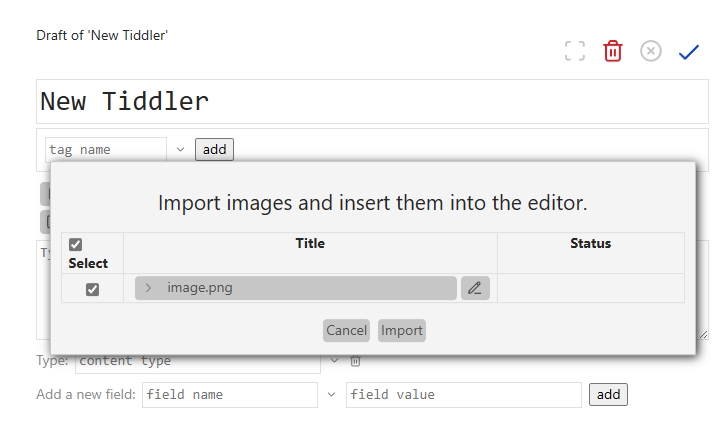
Right now on desktop you can capture a screenshot to clipboard (e.g. on Windows: Win Shift S and select area, on Windows 11 the Printscreen key can be configured to do that directly I think) and then paste into editor. The only problem is that the image is by default named “image.png”, so when pasting the next one, it has to be renamed in order not to overwrite the previous one.
Could this interaction in TW be modified, so that when pasting a copied image, it would be automatically named according to user-chosen patter? E.g. currently edited tiddler title + serial number or timestamp.
You can use this widget to perform MediaDevice capture any combination of
video (webm)
still images (webp, jpeg, or png)
audio (mpeg)
from any of the following media sources:
device camera
device microphone
screenshots from a selected browser tab, application window, or system screen
audio output from a selected browser tab, application window, or system screen
It even supports “picture-in-picture” capture so you can create a screen cast with system audio combined with your camera’s video/audio input.
The captured media is automatically base64-encoded as saved as a tiddler. While this can produce excessively larget tiddlers, you can then use various saving techniques to export the tiddler content to a local binary file (e.g., view the saved tiddler, right-click on the rendered media and then choose “save as…”). Once saved to a local file you can, of course, delete the tiddler to keep your TiddlyWiki small.